How to Make Snapchat Custom Stickers from Photos: Scissors vs AI Packs (2026)
Snapchat's Scissors tool is great for one cutout sticker. Here is how to use it, when it is enough, and when to generate a full reaction pack first.
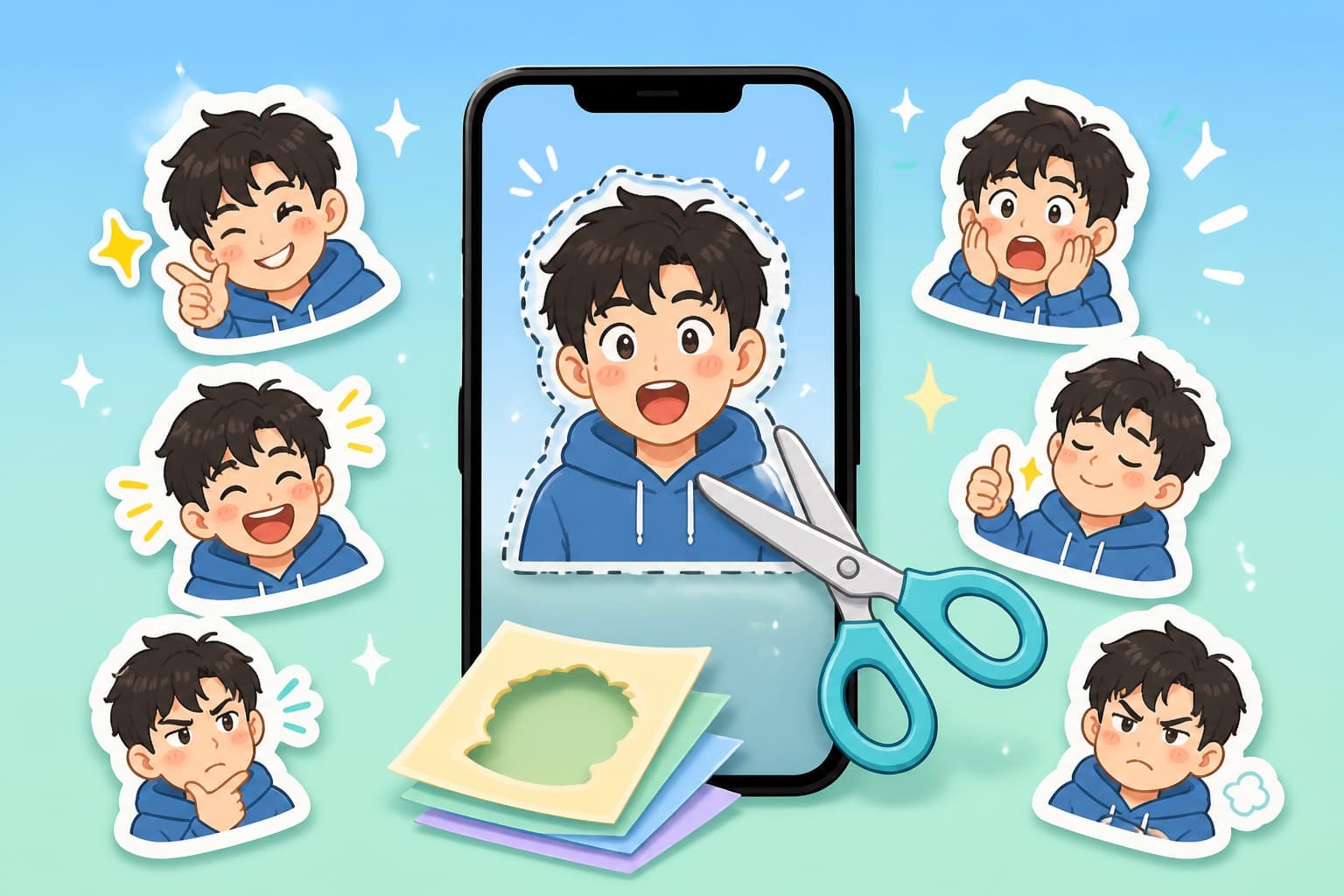
Snapchat custom stickers are built for speed. See a funny face in a photo, cut it out with Scissors, drop it into a Snap, and it is saved in your sticker drawer for later. For one-off jokes, that is perfect.
The limitation is just as clear: Scissors creates one cutout at a time. It does not turn one photo into a whole reaction pack, keep a consistent style, or give you a set of emotions you can reuse across chats. This guide shows both workflows: Snapchat's official quick method and the AI-pack method when you want stickers that feel like a real set.
What Snapchat officially supports
Snapchat's help article says you can make custom stickers with the Scissors tool, add them to Snaps, and send them in Chat. There are two official paths:
- From a chat conversation: open the sticker drawer, tap New Sticker, choose a photo, then save the sticker.
- From a Snap: take a Snap, tap the scissors icon on the Preview screen, outline the object with your finger, then lift your finger to paste it as a sticker.
Snapchat also says stickers made with Scissors are automatically saved in your sticker drawer. That is the key benefit: you do the cutout once, then reuse it.
Method 1: Make one sticker inside Snapchat
Use this when you only need one funny cutout:
- Open a chat or take a Snap
- Tap the sticker icon or scissors icon
- Choose a photo or outline an object on the Snap preview
- Save the sticker
- Reuse it from the sticker drawer
Good for: quick reactions, inside jokes, one friend's expression, one pet face, one travel photo.
Limits: manual outline, one sticker at a time, no consistent pack style, hard to create twelve emotions from a single source photo.
If your goal is decorating a Story, Scissors is enough. If your goal is a reusable set for a friend group, you will want a pack first.
Method 2: Generate a sticker pack first
For a proper reaction set, start outside Snapchat. Upload one clear photo to KakaMeme's photo-to-sticker tool and generate a pack with consistent expressions: laugh, no, shock, facepalm, sleepy, proud, angry, thinking, sorry, and celebration.
Then save the best images to your camera roll and bring them into Snapchat as custom stickers. This gives you what Scissors alone cannot: one recognizable character across many emotions.
The same pack can also be reused elsewhere. Export it for WhatsApp, publish a Telegram pack, or turn the best ones into TikTok/short-video stickers. The source art stays consistent even when the platform changes.
What photos work best
Snapchat stickers are usually small and playful, so pick photos with a strong silhouette:
- A face looking toward the camera
- A pet with a clear body outline
- A friend doing a readable gesture
- A prop with a funny shape
Avoid busy backgrounds, tiny faces, screenshots with text, and low-light images. For groups, use multi-character stickers instead of trying to hand-cut each person in Snapchat.
If your sticker looks blurry after sharing, check the export basics in the sticker size guide and the HD sticker troubleshooting guide. Snapchat does not give creators the same formal upload spec as Telegram or LINE, so clean source art matters more than chasing a magic size.
Consent and fan content
Snapchat makes sticker creation feel casual, but recognizable faces still need care. Your own face and pets are fine. Friends should agree before you turn their photo into a reusable sticker, especially if the Snap or sticker may leave the original chat. The friend photo rights guide has the practical boundary.
Celebrity and idol stickers need the same three tiers everywhere: private fan use is the lowest-risk zone, platform or store submission is likely to be rejected, and commercial use can create real legal risk. Read the celebrity sticker legal guide before you make any public pack from a famous person's photo.
Snapchat vs Instagram Cutouts
Snapchat Scissors and Instagram Cutouts are similar: both are fast, built-in, and good for one visual joke. The difference is social context. Snapchat stickers are strongest inside Snaps and chats. Instagram cutouts are strongest inside Stories and Reels.
If you want a personal sticker language that works across apps, generate the pack first, then import the best stickers into each platform.
FAQ
Can Snapchat make custom stickers from photos? Yes. Snapchat's official help says you can use New Sticker from the sticker drawer or the Scissors tool from a Snap preview.
Where do Snapchat custom stickers go? Stickers made with Scissors are saved automatically in your sticker drawer.
Can I make a whole Snapchat sticker pack at once? Not inside Snapchat's Scissors workflow. Generate a pack first, then save/import the best stickers.
Does Snapchat publish a sticker size spec? Not in the same way Telegram, LINE, or WhatsApp do. Use clean, high-contrast source art and test in a Snap.
What is the fastest method? For one sticker, use Scissors. For a reusable set, generate 12 stickers from one photo, then bring the best ones into Snapchat.
More Posts
Google Photos Can Make Stickers Now — Here's How (And What It Can't Do)
Google Photos added sticker creation from your pictures. The built-in flow on Android and iOS, honest limits, and when a full pack generator earns its keep.
How to Make Signal Sticker Packs from Photos: Private Chat Guide (2026)
Signal has a real sticker pack creator, strict size limits, and no central store. Here is the fastest way to turn one photo into a clean private sticker pack.
Are Celebrity Sticker Packs Legal? Rights and Licensing Guide
A practical guide to portrait rights, photo copyright, consent, private sharing, public distribution, and licensing for celebrity-inspired stickers.